PurposeFULL Connection
Clock in, clock out and track your hours
Who this is for: Resident volunteer, Community volunteer, Staff
Resident volunteerCommunity volunteerStaff
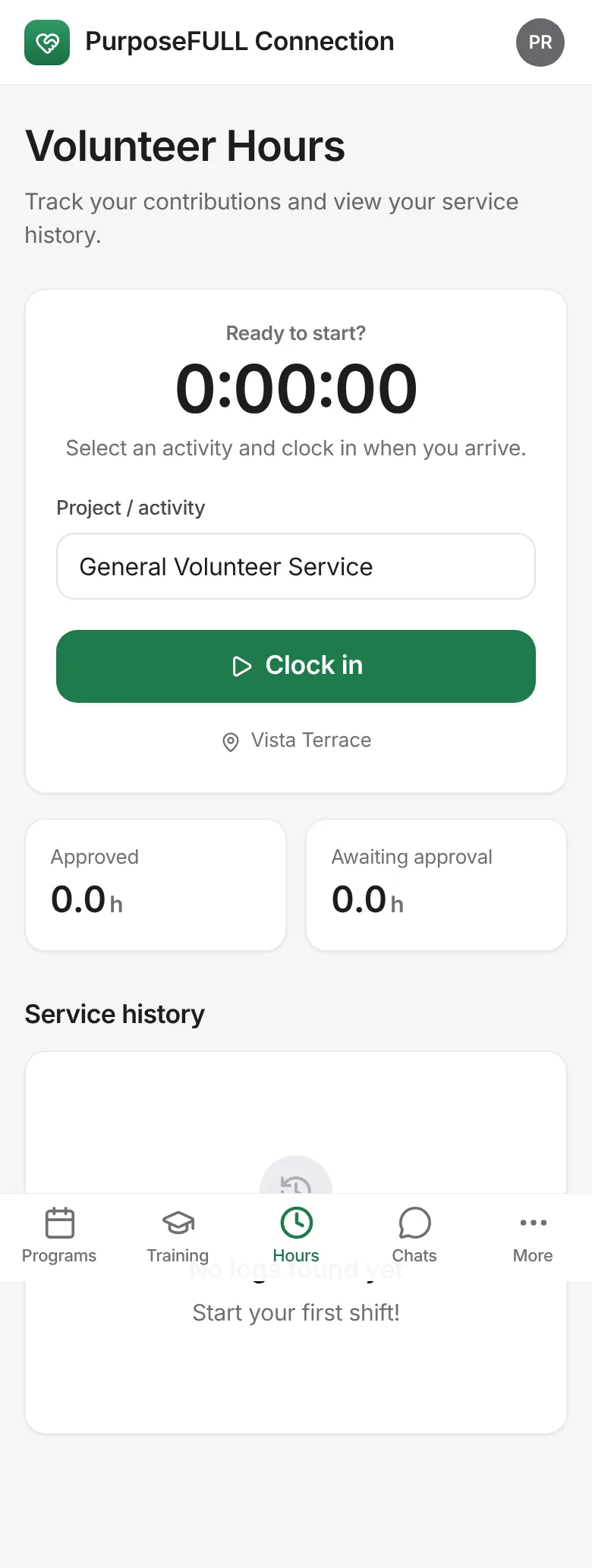
Tap Hours. Choose the project or activity and tap Clock in when you start; tap Clock out when you finish.
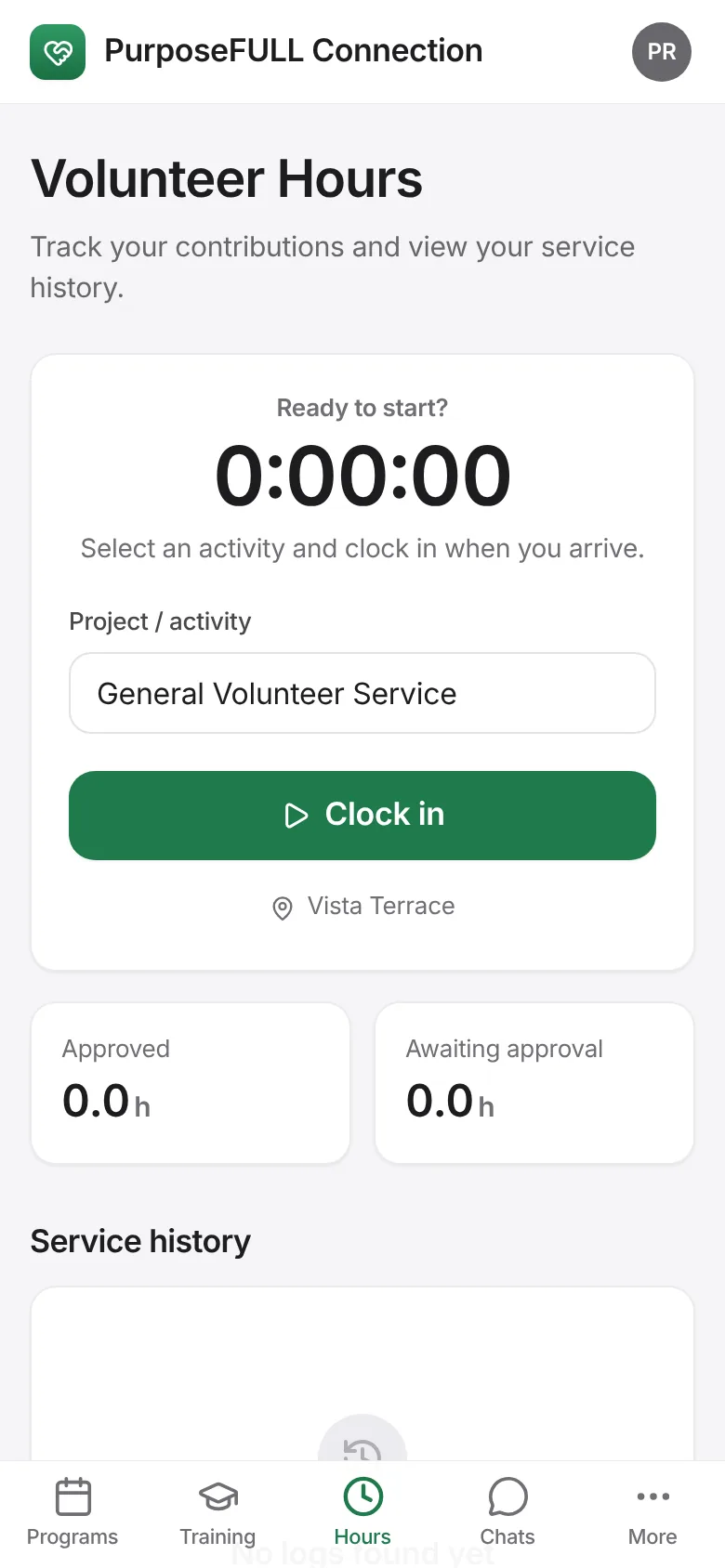
Inside a program you are confirmed for, Clock in is on the program itself.
Service history lists every entry with its status: Active, Awaiting approval or Approved. Approved hours count towards your totals and badges.
All PurposeFULL Connection guides PurposeFULL Connection FAQ