CoreFitness

Getting started as an Admin

Who this is for: Admin

Admin

Set the center up once: activities, the waiver, the kiosk behaviour and staff logins.

  1. Sign in to the staff console with your admin account.
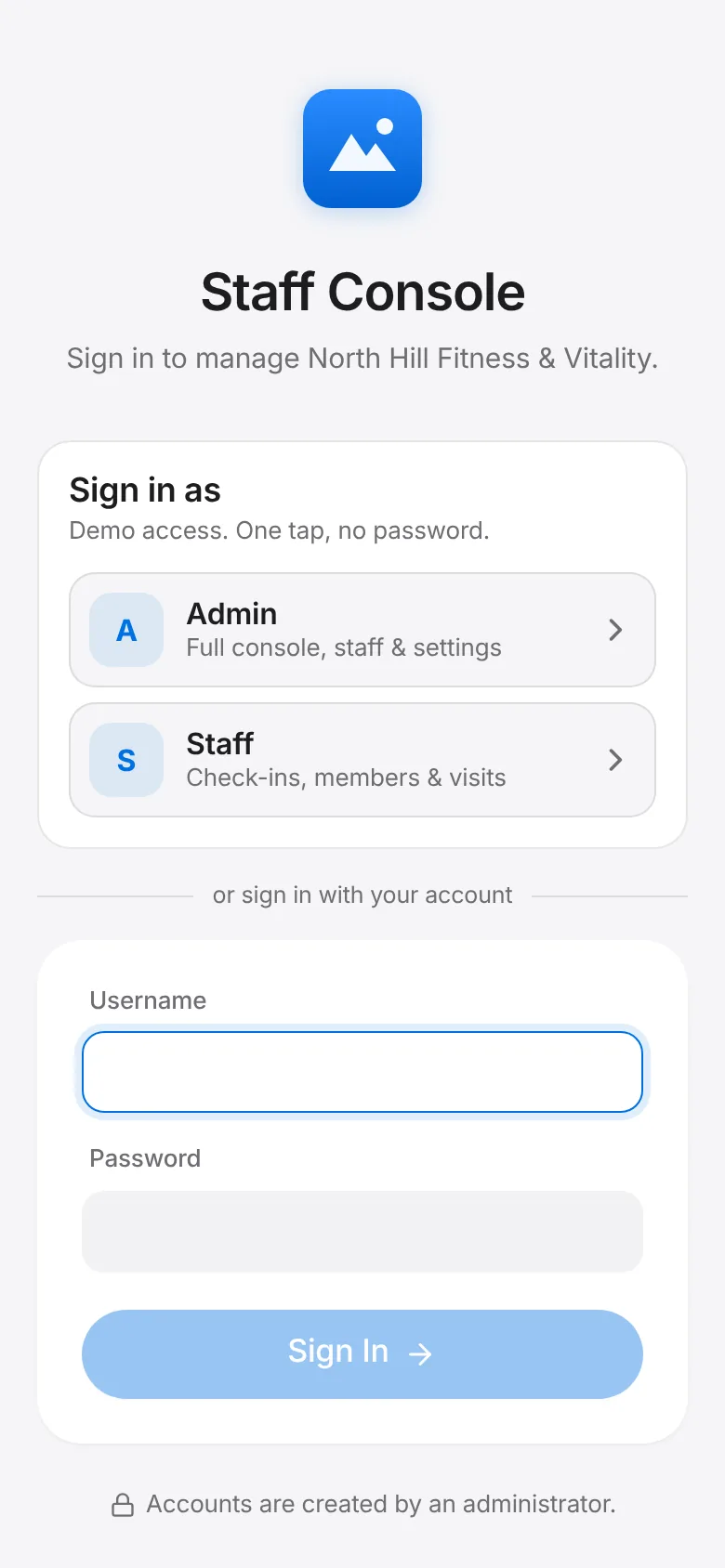
    CoreFitness: Sign in to the staff console with your admin account.
  2. Activities: add the gym, classes and open-play activities members can check in to, in the order they should appear on the kiosk.
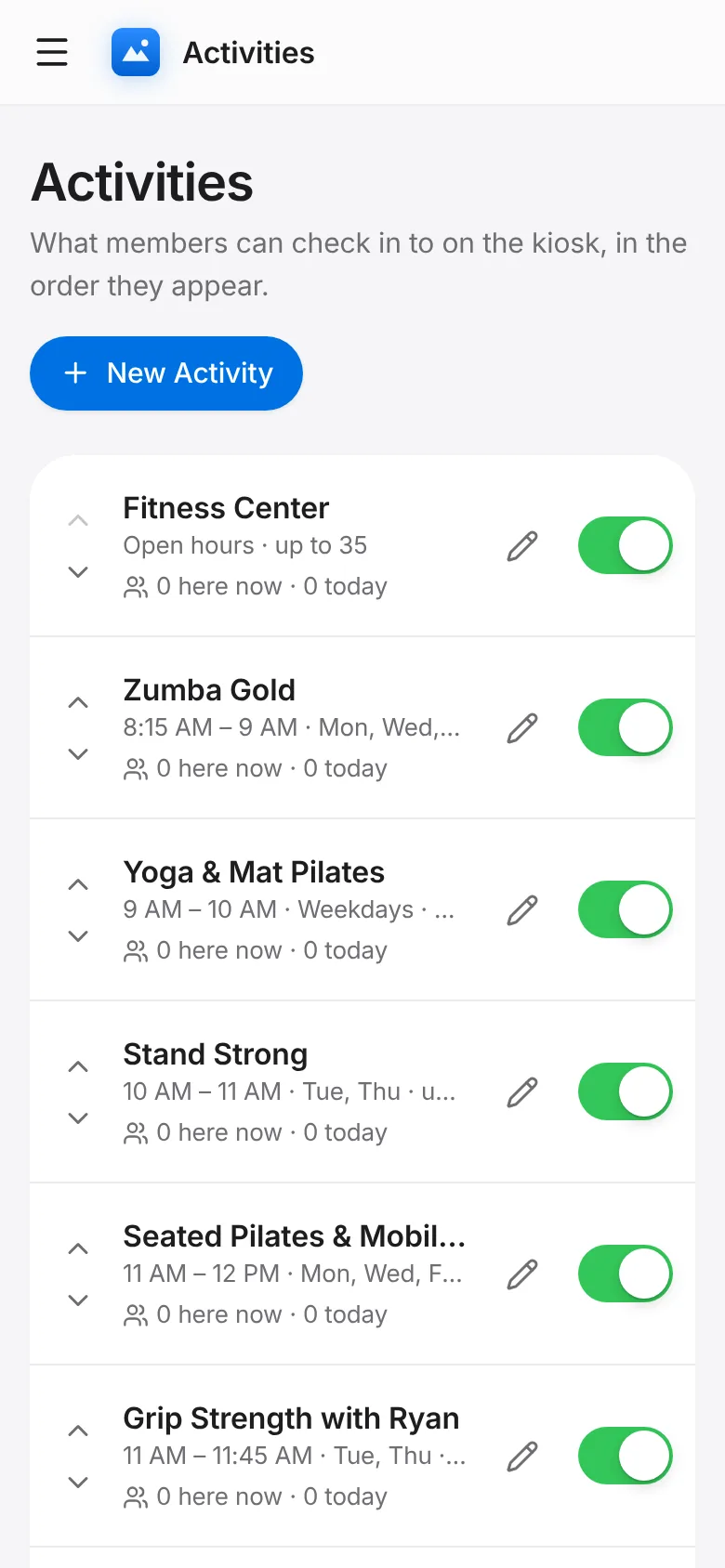
    CoreFitness: Activities: add the gym, classes and open-play activities members can check in to, in the order they should appear on the kiosk.
  3. Waivers & Documents: review the main waiver and add any policy that must be signed.
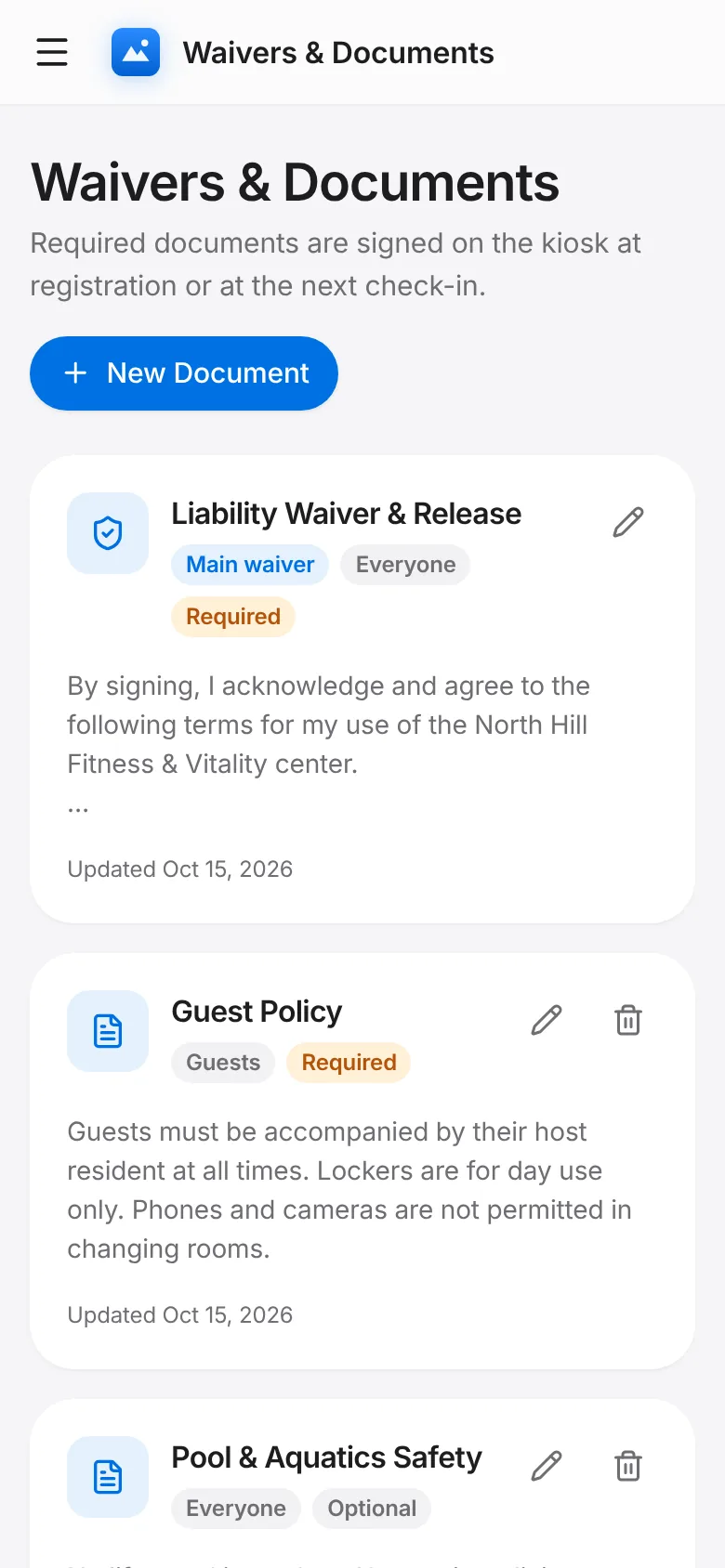
    CoreFitness: Waivers & Documents: review the main waiver and add any policy that must be signed.
  4. Settings: set automatic check-out, how long the kiosk waits before returning to the start, and face check-in strictness.
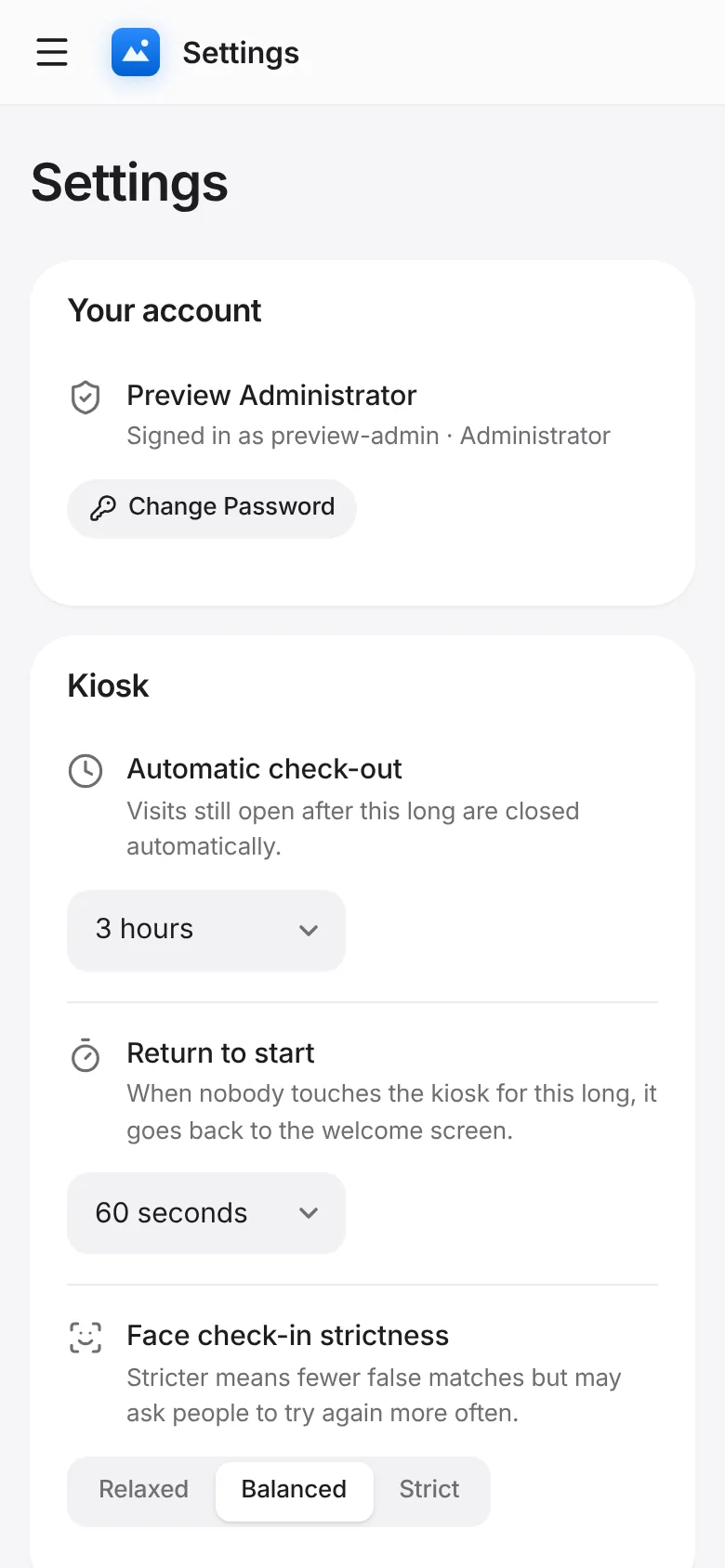
    CoreFitness: Settings: set automatic check-out, how long the kiosk waits before returning to the start, and face check-in strictness.
  5. Settings → Staff accounts: add a login for each staff member.
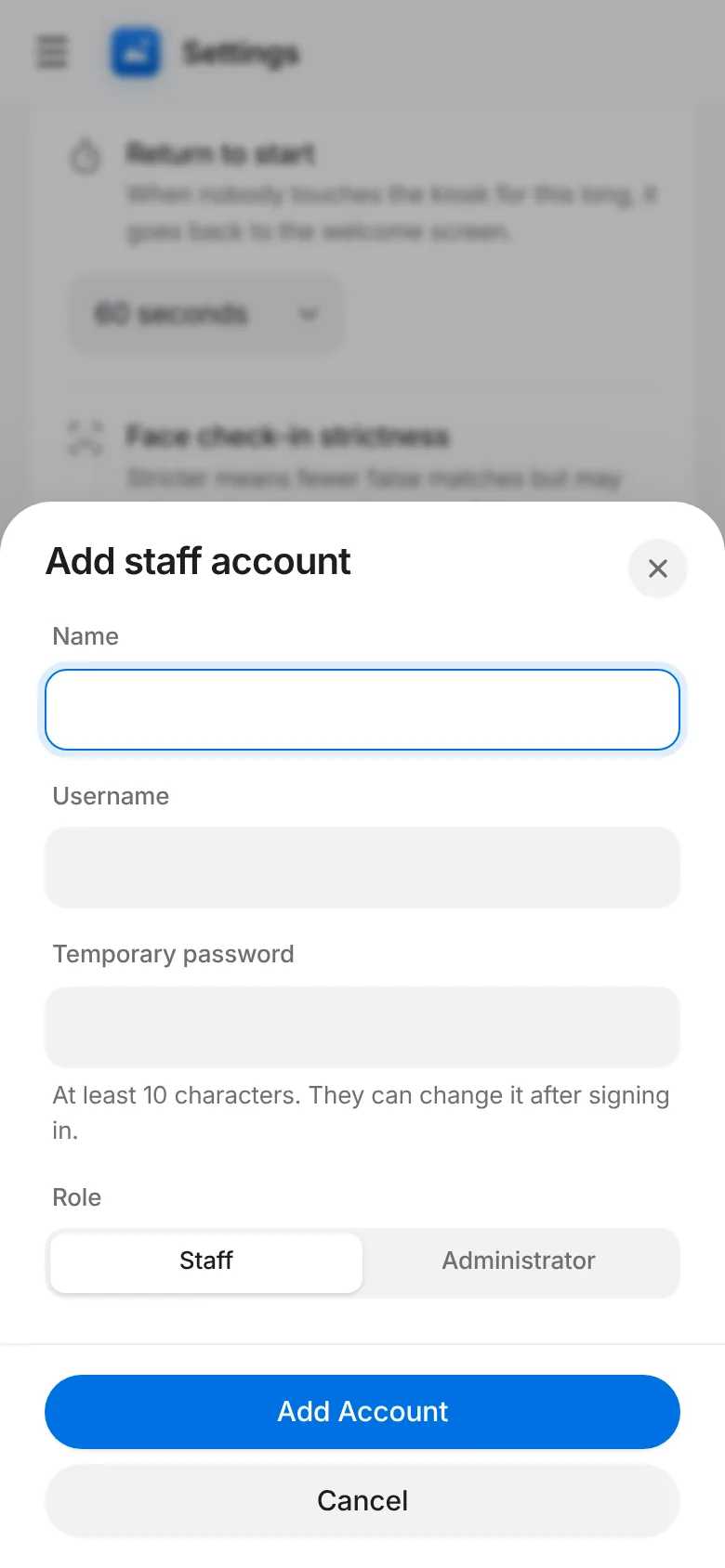
    CoreFitness: Settings → Staff accounts: add a login for each staff member.
  6. Put the iPad on the front desk, open the app and tap Check-in Kiosk.
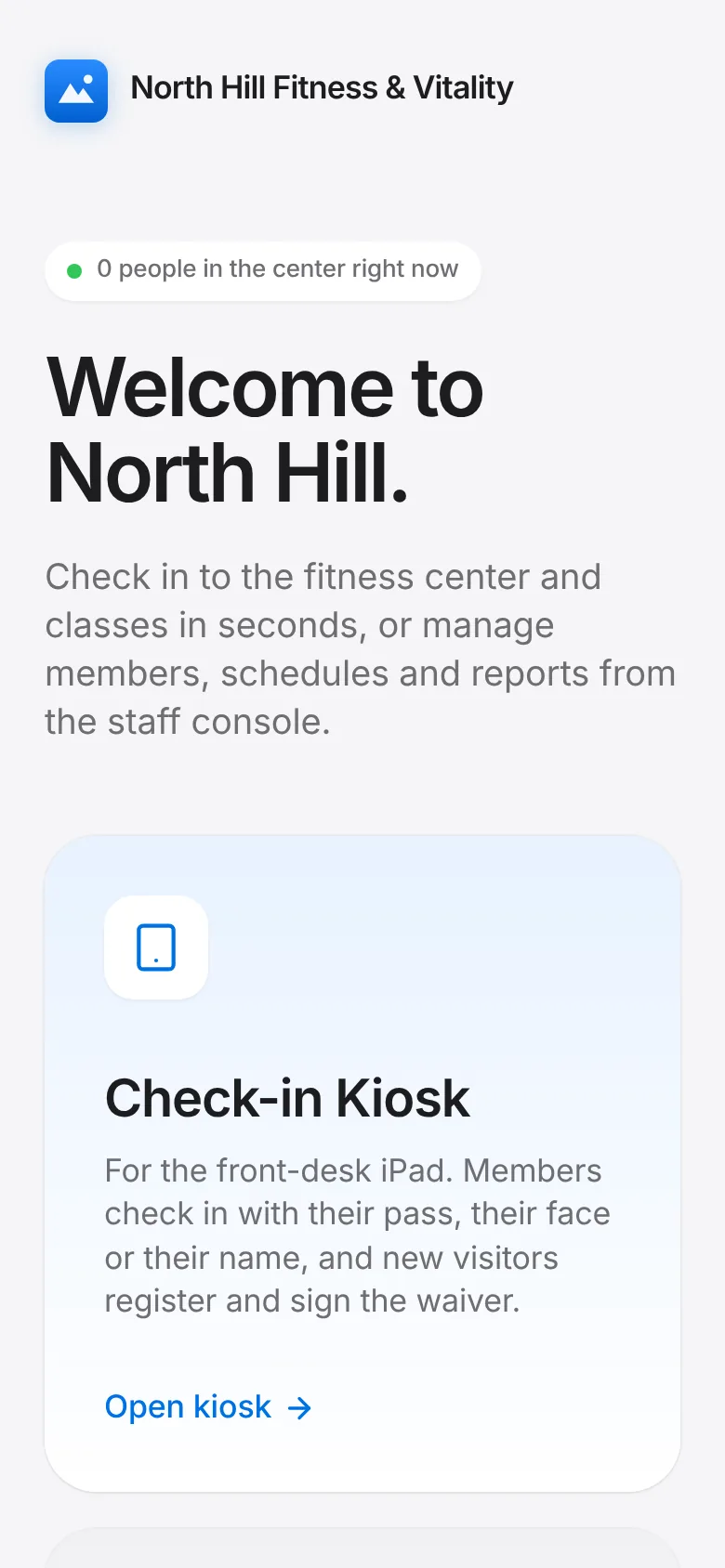
    CoreFitness: Put the iPad on the front desk, open the app and tap Check-in Kiosk.

All CoreFitness guides   CoreFitness FAQ